Monthly Attendance Sheet Generator With Holidays
Discover the most efficient way to manage monthly classroom registers. Learn how automated holiday mapping and custom tracking columns save hours of administrative work.
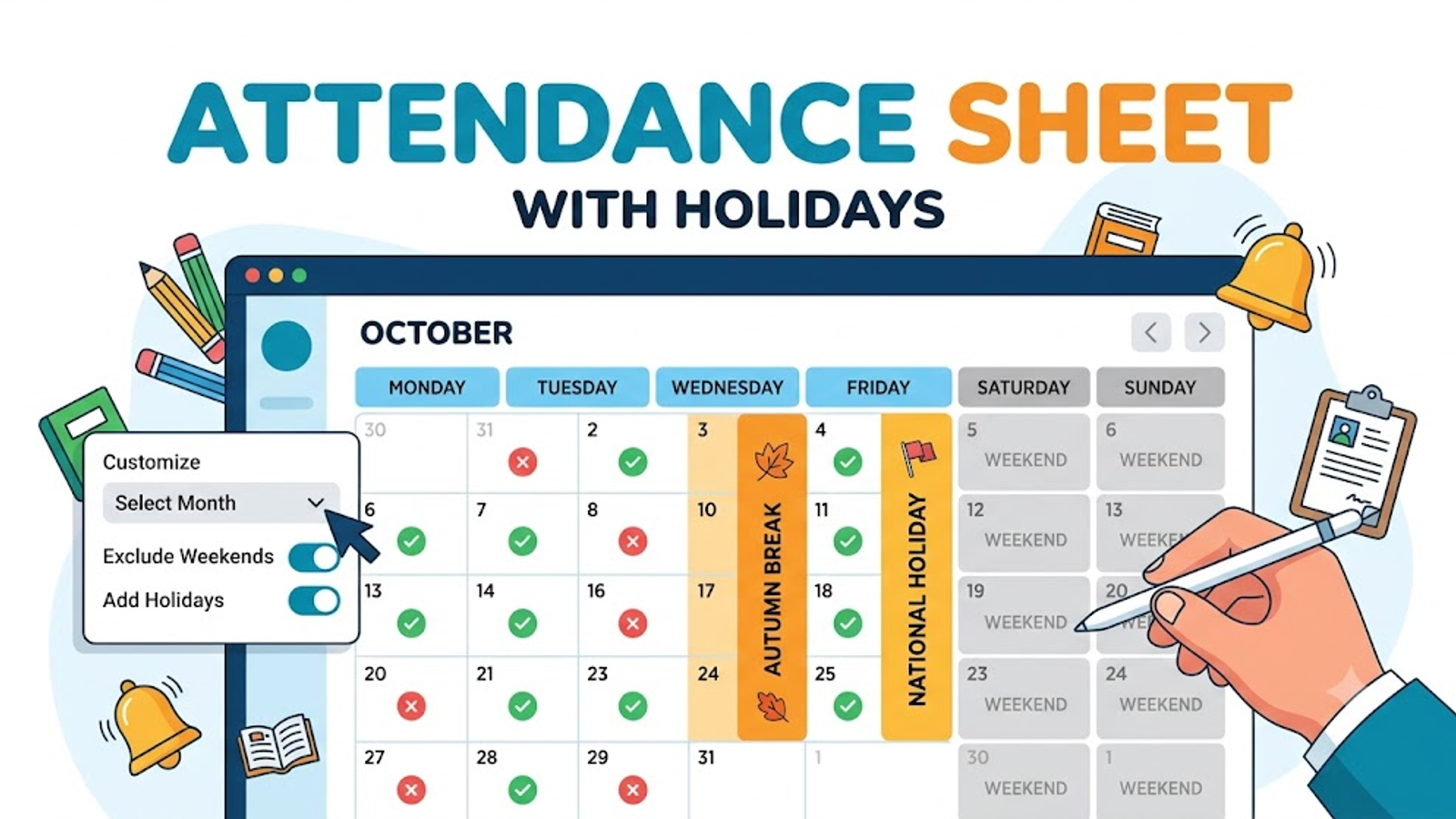
Monthly Attendance Sheet Generator With Holidays
Every educator knows the frustration of setting up a new semester's tracking documents. When you build a student attendance sheet from scratch in standard spreadsheet software, mapping out the days of the week is only half the battle. The real headache begins when you try to account for weekends, school breaks, and public holidays without leaving awkward blank columns or ruining your page formatting. Finding an efficient way to create a printable student register that dynamically adjusts to your specific academic calendar is crucial for maintaining clear records and protecting your valuable planning periods.
Table of Contents
- The Problem with Manual Academic Calendars
- The Solution: Dynamic Holiday Mapping
- Core Features of a Smart Attendance Tracker
- Automated Weekend Filtering
- Vertical Holiday Labels
- Custom Tracking Columns
- Creating Your Custom Register
- Step 1: Define the Month and Dates
- Step 2: Map Your Holidays
- Step 3: Add Extra Columns
- Step 4: Print Your Document
- Frequently Asked Questions
- Final Thoughts
The Problem with Manual Academic Calendars
In standard classroom management, tracking attendance requires precise alignment with the school calendar. When relying on manual spreadsheets, teachers often have to merge cells, black out specific columns for weekends, and attempt to type text vertically to indicate a holiday. If a sudden snow day or faculty in-service day is added to the schedule, the entire document often needs to be reformatted.
This tedious data entry pulls focus away from actual lesson preparation. Reducing this unnecessary administrative burden is a highly recommended strategy for minimizing teacher burnout. An automated attendance sheet generator eliminates this friction by treating holidays and weekends as core components of the calendar layout rather than an afterthought.
The Solution: Dynamic Holiday Mapping
Instead of manually fighting with column widths, modern educators utilize a digital attendance sheet generator designed specifically for classroom workflows.
A purpose-built tool allows you to map out your semester visually. By clicking on specific dates on a built-in calendar, you can designate them as non-instructional days. The software then automatically filters these dates, ensuring that your printed sheet only displays the days you are actually teaching. This maximizes the space on your paper and keeps your clipboard perfectly organized.
Core Features of a Smart Attendance Tracker
Transitioning to an automated monthly attendance log provides several unique features that traditional spreadsheets cannot replicate without advanced coding.
Automated Weekend Filtering
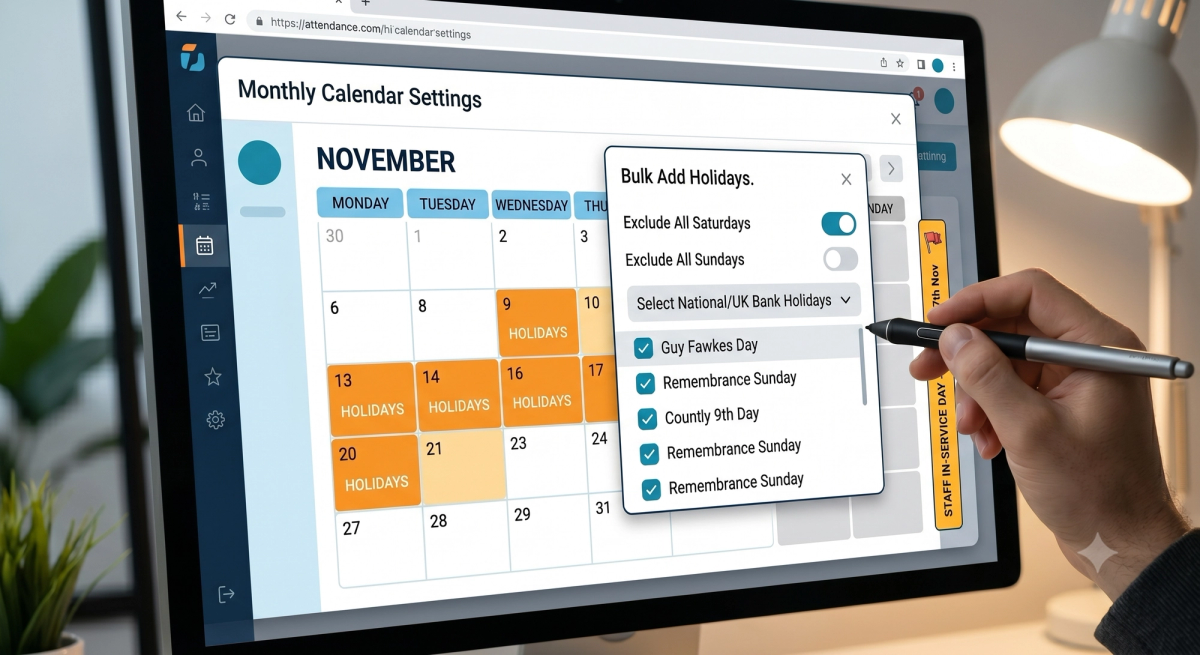
Whether you teach a standard five-day week or an alternative block schedule, you should not have to manually delete Saturday and Sunday columns every month. A smart generator includes quick-action buttons to instantly mark all Saturdays and Sundays as non-instructional, removing them from the tracking grid instantly.
Vertical Holiday Labels
When a holiday falls in the middle of the teaching week, leaving a blank column can cause confusion—especially for a guest educator trying to follow your substitute teacher plans. Advanced generators allow you to type a specific reason for the day off (such as "Spring Break" or "Bank Holiday"). The system then elegantly prints this reason vertically inside the column, making the schedule immediately clear to anyone reviewing the document.
Custom Tracking Columns
Classroom tracking often requires more than just marking a student present or absent. A highly adaptable tool allows you to append extra custom columns at the end of your date grid. You can quickly add up to six extra fields—such as "Total Present," "Percentage," "Remarks," or contact information like "Phone"—providing dedicated blank cells for your end-of-term calculations.
Maximizing Classroom Efficiency
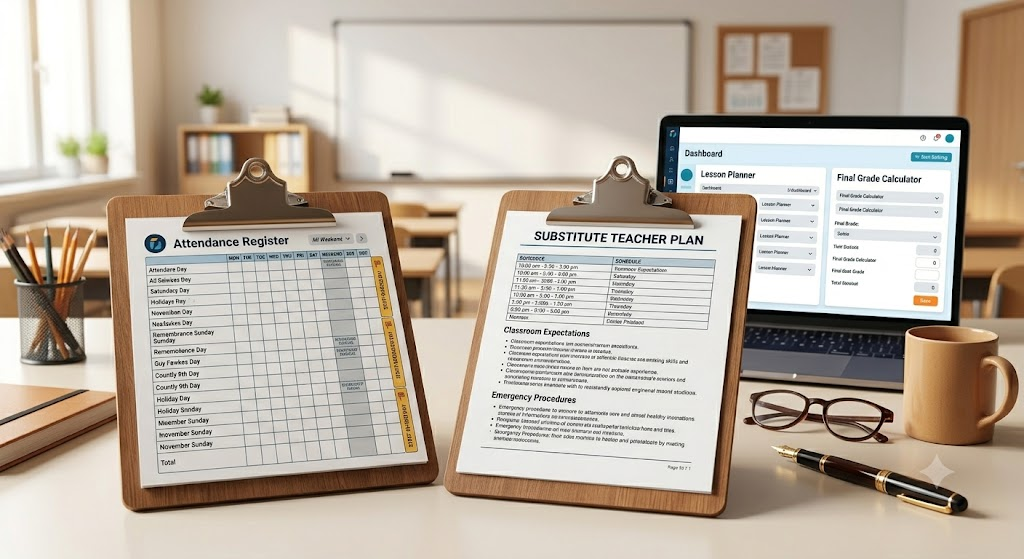
Streamlining your administrative paperwork makes it much easier to keep your entire classroom workflow organized. When your monthly attendance register is cleanly printed and formatted, you eliminate the daily stress of messy handwriting and misaligned rows.
Creating Your Custom Register
Setting up a custom attendance sheet with holidays takes less than a minute. The process is entirely frictionless and happens directly in your browser.
Step 1: Define the Month and Dates
Begin by inputting your classroom details and selecting the active date range for the month or term you are tracking. The system will automatically generate a grid matching those exact dates.
Step 2: Map Your Holidays
Use the interactive calendar interface to click any date that represents a holiday or school closure. You can use the bulk-add features to mark all weekends, and type in specific reasons for individual days off. The grid will adjust in real time, converting those columns into labeled holiday markers.
Step 3: Add Extra Columns
Before finalizing the document, select any quick-add custom columns you need for your grading period. Adding fields for "Percentage" or "Total Absent" ensures you have space for final calculations before you transition to updating your lesson planner for the next term.
Step 4: Print Your Document
Once the calendar and columns reflect your exact needs, simply generate the document. It is instantly formatted for standard paper sizes, giving you a professional, ready-to-use printout.
Frequently Asked Questions
Can I save my holiday settings for the next month?
Because the generator operates instantly within your browser, you can quickly generate a new sheet at the beginning of each month by simply advancing the date range and clicking the new holidays on the interactive calendar.
How do I fit all the dates on one printed page?
The generator dynamically adjusts column widths based on the length of your date range and the number of custom columns you add. Filtering out weekends and holidays helps maximize the space, ensuring everything fits neatly on a single sheet of paper.
Does the vertical holiday text work for long phrases?
Yes. When you input a reason for a holiday, the tool automatically aligns and formats the text vertically so it fits perfectly within the designated column without disrupting the rest of the grid.
Can I use this for non-academic tracking?
Absolutely. While designed for teachers, the ability to customize columns and map specific dates makes it an excellent tool for tracking employee attendance, seminar participation, or club meetings.
Final Thoughts
Creating a monthly attendance sheet does not have to be an exercise in spreadsheet formatting. By utilizing a smart digital tool that automatically maps out holidays, filters weekends, and allows for custom tracking columns, you can generate a professional, highly accurate document in seconds. Simplify your classroom management today and spend your time focusing on your students rather than your paperwork.
Found this useful?
Try our free tools — calculate your GPA, check college GPA requirements, or generate an attendance sheet in seconds.