Back to all articles

Top 15 Free Collaborative Project Tools for Group Assignments in 2026

Discover the best free collaborative project tools for group assignments in 2026. Boost teamwork, productivity, and learning with these EdTech tools!

22 min read
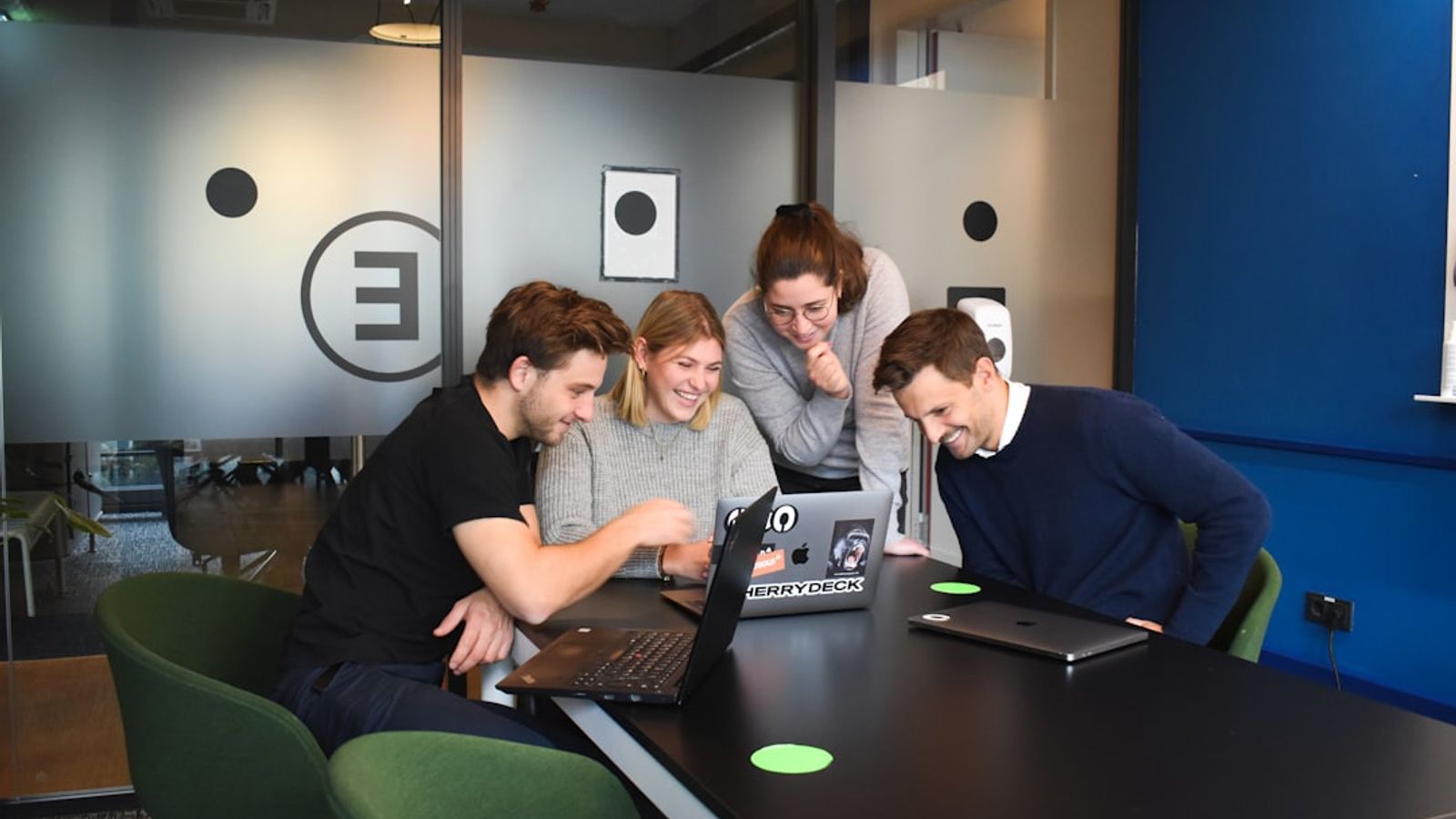
Education illustration by Cherrydeck

Unlocking Success: The Best **Free Collaborative Project Tools for Students** in 2026

Struggling to keep your group assignments on track while juggling tight deadlines and scattered team members? You’re not alone. The rise of **free collaborative project tools for students** has revolutionized how teams work together—whether you’re studying abroad, working remotely, or simply trying to avoid last-minute chaos. These platforms offer seamless real-time collaboration, version control, and communication features, all without breaking the bank. In this guide, we’ll dive into the **top 15 free collaborative project tools for students** in 2026, helping you pick the perfect fit for your next group project. Whether you prioritize ease of use, robust features, or integration with other tools, we’ve got you covered.

---

Why Collaborative Project Tools Are a Game-Changer for Students

Group assignments can be a double-edged sword: they foster teamwork but often come with logistical nightmares. From misaligned deadlines to version conflicts, traditional methods like shared Google Docs or emails can quickly turn into a mess. **Free collaborative project tools for students** solve these problems by providing:

- **Centralized workspaces**: One place for all project files, tasks, and discussions.

- **Real-time collaboration**: Edit documents, brainstorm ideas, or track progress together—no more email chains.

- **Task management**: Assign roles, set deadlines, and monitor progress with ease.

- **Communication hubs**: Built-in chat, video calls, or comment threads to keep everyone aligned.

- **Version history**: Never lose track of changes or revert to a previous version if needed.

In 2026, these tools aren’t just nice-to-haves; they’re essential for staying organized, efficient, and stress-free. Let’s explore the best options available.

---

**The Top 15 Free Collaborative Project Tools for Students in 2026**

We’ve curated this list based on **user reviews, feature richness, ease of use, and student-specific needs**. Each tool excels in different areas, so your choice depends on your project’s requirements.

1. **Trello (by Atlassian)**

**Best for**: Visual task management and simple project tracking

Trello is a **free collaborative project tool for students** that turns group assignments into a drag-and-drop Kanban board. It’s intuitive, flexible, and perfect for breaking down complex projects into smaller, actionable tasks.

#### **Key Features**

- **Customizable boards**: Create columns for “To Do,” “In Progress,” and “Done.”

- **Cards for tasks**: Add checklists, due dates, attachments, and comments to each card.

- **Power-Ups**: Integrate with Google Drive, Slack, or Dropbox for extra functionality.

- **Collaborative editing**: Multiple users can update cards in real time.

- **Free plan**: Unlimited boards and 10 Power-Ups per board.

#### **Pros**

- Extremely user-friendly, even for beginners.

- Visual and flexible—great for creative or research-based projects.

- Integrates with other tools you might already use.

#### **Cons**

- Limited advanced features on the free plan (e.g., no automation or reporting).

- Can get cluttered if not organized properly.

#### **When to Use It**

If your group assignment involves **brainstorming, planning, or tracking progress** in a visual way, Trello is a fantastic choice. For example, a marketing team could use Trello to map out campaign ideas, assign tasks like research or design, and monitor deadlines.

---

2. **Notion**

**Best for**: All-in-one project and note-taking

Notion is often called the “Swiss Army knife” of **free collaborative project tools for students** because it combines wikis, databases, task lists, and calendars into one customizable workspace. It’s ideal for students who want to centralize all their project-related notes, research, and tasks.

#### **Key Features**

- **Flexible templates**: Use pre-built project management, research, or study templates.

- **Databases**: Create tables, boards, or calendars to organize tasks and data.

- **Real-time collaboration**: Multiple users can edit documents simultaneously.

- **Integration**: Sync with Google Drive, Slack, or GitHub.

- **Free plan**: Up to 10 guests and 5GB of storage.

#### **Pros**

- Highly customizable—adapt it to any project type.

- Combines note-taking and project management in one place.

- Great for students who love structure and organization.

#### **Cons**

- Steeper learning curve than Trello or Google Workspace.

- Free plan has storage limits.

#### **When to Use It**

Notion shines for **research-heavy projects, group wikis, or assignments requiring extensive note-taking**. For instance, a history class working on a collaborative essay could use Notion to organize sources, draft sections, and assign editing tasks.

---

3. **Google Workspace (formerly G Suite)**

**Best for**: Seamless document collaboration and communication

If you’re already using Google Drive, Docs, Sheets, and Meet, you’re halfway there. **Google Workspace** is one of the most **free collaborative project tools for students** because it’s free for educational institutions and offers real-time collaboration across all Google apps.

#### **Key Features**

- **Google Docs, Sheets, Slides**: Edit documents together in real time.

- **Google Drive**: Centralized file storage with easy sharing.

- **Google Meet**: Free video conferencing for up to 100 participants.

- **Google Forms**: Create surveys or assignment checklists.

- **Free for students**: Google Workspace for Education offers unlimited storage and advanced features.

#### **Pros**

- Seamless integration with other Google tools.

- No learning curve—most students already use it.

- Real-time collaboration is smooth and reliable.

#### **Cons**

- Limited to Google’s ecosystem (not ideal if you use Microsoft or other tools).

- No advanced project management features like Trello or Asana.

#### **When to Use It**

Google Workspace is perfect for **simple document collaboration, brainstorming sessions, or group presentations**. For example, a biology lab group could use Google Docs to draft a lab report, Google Sheets to track data, and Google Meet for virtual meetings.

---

4. **Asana**

**Best for**: Advanced task management and project tracking

Asana is a **powerhouse among free collaborative project tools for students**, offering robust features for tracking tasks, deadlines, and project progress. It’s ideal for larger group assignments or complex projects with multiple stages.

#### **Key Features**

- **Task lists and timelines**: Visualize project workflows with Gantt charts.

- **Subtasks and dependencies**: Break projects into smaller steps and track progress.

- **Collaboration**: Assign tasks, add comments, and mention team members.

- **Free plan**: Up to 15 team members and basic features.

#### **Pros**

- More advanced than Trello for project planning.

- Great for tracking deadlines and dependencies.

- Integrates with Slack, Google Drive, and more.

#### **Cons**

- Free plan is limited (no Gantt charts or advanced reporting).

- Can feel overwhelming for simple projects.

#### **When to Use It**

Asana is best for **larger group projects with multiple stages**, such as a capstone project or a group research paper with deadlines for each section. For example, a computer science team working on a software project could use Asana to assign coding tasks, set milestones, and track progress.

---

5. **ClickUp**

**Best for**: All-in-one productivity with customizable views

ClickUp is a **versatile free collaborative project tool for students** that combines task management, docs, goals, and even time tracking. It’s designed to replace multiple tools, making it a favorite for students who want everything in one place.

#### **Key Features**

- **Customizable views**: Lists, boards, Gantt charts, or calendars.

- **Docs and wikis**: Create internal documentation within the platform.

- **Goals and milestones**: Track project progress toward objectives.

- **Free plan**: Unlimited tasks, 100MB file uploads, and basic features.

#### **Pros**

- Highly customizable to fit any workflow.

- Combines task management, docs, and goals in one place.

- Free plan is surprisingly robust.

#### **Cons**

- Interface can feel cluttered for beginners.

- Some advanced features require a paid plan.

#### **When to Use It**

ClickUp is ideal for **students who want a single tool for tasks, notes, and project tracking**. For instance, a film class working on a short movie could use ClickUp to assign roles (scriptwriting, filming, editing), track progress, and share documents like storyboards.

---

6. **Miro**

**Best for**: Visual collaboration and brainstorming

Miro is a **free collaborative project tool for students** that specializes in **visual collaboration**, making it perfect for brainstorming, mind-mapping, or planning creative projects. It’s like a digital whiteboard where your team can collaborate in real time.

#### **Key Features**

- **Infinite canvas**: Draw, write, or add sticky notes freely.

- **Templates**: Use pre-built brainstorming, flowcharts, or project planning templates.

- **Real-time collaboration**: Multiple users can edit simultaneously.

- **Integration**: Connect with Slack, Google Drive, or Trello.

- **Free plan**: Up to 3 editable boards and 3 team members.

#### **Pros**

- Excellent for creative or visual projects.

- Encourages brainstorming and idea-sharing.

- Easy to use for quick sessions.

#### **Cons**

- Free plan is limited to 3 team members.

- Not ideal for document-heavy projects.

#### **When to Use It**

Miro is perfect for **brainstorming sessions, planning creative projects, or mapping out complex ideas**. For example, a design team could use Miro to sketch out a website layout, gather feedback, and assign tasks based on the final design.

---

7. **Slack**

**Best for**: Team communication and file sharing

While not a traditional project management tool, **Slack** is a **free collaborative project tool for students** that excels at **communication and file sharing**. It’s ideal for groups that need a dedicated chat space to discuss assignments, share updates, and keep everyone on the same page.

#### **Key Features**

- **Channels**: Organize discussions by project or topic.

- **Direct messaging**: Private chats for smaller discussions.

- **File sharing**: Upload and share documents, images, or links.

- **Integrations**: Connect with Google Drive, Trello, or Asana.

- **Free plan**: Unlimited message history and 10,000 monthly messages.

#### **Pros**

- Keeps communication organized and searchable.

- Integrates with other tools for a unified workflow.

- Great for quick updates and discussions.

#### **Cons**

- Not a project management tool—lacks task tracking.

- Can get noisy if not organized properly.

#### **When to Use It**

Slack is best for **groups that need a dedicated chat space** alongside other tools. For example, a programming team could use Slack to discuss code issues, share snippets, and coordinate meetings while using GitHub for version control.

---

8. **Loom**

**Best for**: Asynchronous video communication

**Loom** is a **free collaborative project tool for students** that allows you to record **screencasts, video messages, or screen recordings** to share feedback, explanations, or updates. It’s perfect for groups that need to communicate when everyone isn’t online at the same time.

#### **Key Features**

- **Screen recording**: Record your screen, camera, or both.

- **Video messaging**: Share quick updates or explanations.

- **Embeddable links**: Share recordings in Slack, email, or Google Docs.

- **Free plan**: Up to 25 videos per month and 5 minutes per recording.

#### **Pros**

- Great for asynchronous feedback or explanations.

- More personal than text-based communication.

- Easy to use—no technical skills required.

#### **Cons**

- Free plan has limits on video length and quantity.

- Not a project management tool—best used alongside others.

#### **When to Use It**

Loom is ideal for **groups that need to share explanations, walkthroughs, or feedback** without scheduling a meeting. For example, a writing group could use Loom to record feedback on drafts or explain edits to peers.

---

9. **GitHub Classroom**

**Best for**: Version control and coding collaboration

If your group assignment involves **coding, software development, or version control**, **GitHub Classroom** is one of the best **free collaborative project tools for students**. It’s designed specifically for educators and students to manage repositories, track changes, and collaborate on code.

#### **Key Features**

- **Version control**: Track changes to code with Git and GitHub.

- **Pull requests**: Review and merge code changes collaboratively.

- **Issue tracking**: Report and manage bugs or tasks.

- **Free for students**: GitHub offers free accounts with unlimited private repositories.

#### **Pros**

- Industry-standard for coding projects.

- Excellent for tracking changes and collaboration.

- Integrates with other tools like Slack or Trello.

#### **Cons**

- Steeper learning curve for non-coders.

- Not ideal for non-technical projects.

#### **When to Use It**

GitHub Classroom is a must for **coding projects, app development, or any assignment requiring version control**. For example, a computer science team building a mobile app could use GitHub to manage code branches, review pull requests, and track features.

---

10. **Padlet**

**Best for**: Brainstorming, mind-mapping, and visual collaboration

**Padlet** is a **free collaborative project tool for students** that turns walls into interactive canvases for brainstorming, discussions, or organizing ideas. It’s simple, visual, and perfect for creative or research-based projects.

#### **Key Features**

- **Interactive boards**: Add text, images, videos, or links.

- **Collaborative editing**: Multiple users can contribute simultaneously.

- **Templates**: Use pre-built brainstorming or project planning templates.

- **Free plan**: Up to 3 boards and 100MB storage.

#### **Pros**

- Easy to use and visually engaging.

- Great for brainstorming or organizing ideas.

- No learning curve.

#### **Cons**

- Limited storage on the free plan.

- Not ideal for document-heavy projects.

#### **When to Use It**

Padlet is perfect for **brainstorming sessions, idea collection, or visual project planning**. For example, a marketing team could use Padlet to gather campaign ideas, organize feedback, or create a mood board for a project.

---

11. **Focus@Will**

**Best for**: Productive group study sessions

While not a traditional project management tool, **Focus@Will** is a **free collaborative project tool for students** that enhances **group study sessions** by providing scientifically backed music to improve focus. It’s ideal for groups working on research, writing, or collaborative study materials.

#### **Key Features**

- **Background music**: Customizable playlists to boost concentration.

- **Study sessions**: Sync with other students for group focus.

- **Free plan**: Limited access to music tracks.

#### **Pros**

- Improves focus during group work.

- Encourages productivity in collaborative sessions.

- Easy to integrate with other tools.

#### **Cons**

- Not a project management tool—best used alongside others.

- Free plan has limited features.

#### **When to Use It**

Focus@Will is great for **groups studying together or working on research papers**. For example, a history class could use Focus@Will during a collaborative writing session to stay focused while drafting a group essay.

---

12. **Zoho Projects**

**Best for**: Advanced project management with a free plan

**Zoho Projects** is a **free collaborative project tools for students** that offers **robust project management features**, including Gantt charts, time tracking, and resource management. It’s ideal for larger group assignments or complex projects.

#### **Key Features**n- **Gantt charts**: Visualize project timelines and dependencies.

- **Time tracking**: Monitor how much time tasks take.

- **Resource management**: Assign tasks to team members.

- **Free plan**: Up to 3 users and basic features.

#### **Pros**

- More advanced than Trello or Asana for free.

- Great for tracking time and resources.

- Integrates with other Zoho apps.

#### **Cons**

- Free plan is limited to 3 users.

- Interface can feel complex for beginners.

#### **When to Use It**

Zoho Projects is best for **larger group projects with multiple stages or resource constraints**. For example, a business class working on a case study could use Zoho to track research timelines, assign roles, and monitor progress.

---

13. **Doodle**

**Best for**: Scheduling group meetings

**Doodle** is a **free collaborative project tool for students** that simplifies **scheduling group meetings or deadlines**. It’s perfect for groups that struggle to find a time that works for everyone.

#### **Key Features**

- **Polling**: Create polls to find the best meeting time.

- **Invites**: Share polls with team members.

- **Free plan**: Unlimited polls and participants.

#### **Pros**

- Eliminates back-and-forth emails about meeting times.

- Simple and easy to use.

- Works for both in-person and virtual meetings.

#### **Cons**

- Not a project management tool—best used for scheduling.

- Limited functionality beyond polling.

#### **When to Use It**

Doodle is ideal for **groups that need to coordinate meetings, deadlines, or study sessions**. For example, a study group could use Doodle to find a time for a weekly review session.

---

14. **Canva for Education**

**Best for**: Collaborative design and visual projects

**Canva for Education** is a **free collaborative project tool for students** that allows teams to create **presentations, posters, or social media graphics** together. It’s perfect for creative or visually driven group assignments.

#### **Key Features**

- **Design templates**: Pre-built layouts for presentations, posters, or infographics.

- **Collaborative editing**: Multiple users can edit designs simultaneously.

- **Free for students**: Access to premium templates and tools.

- **Integration**: Share designs directly to Google Drive or Slack.

#### **Pros**

- Easy to create professional-looking visuals.

- Encourages creativity in group projects.

- Free for educational use.

#### **Cons**

- Not a project management tool—best for design-heavy projects.

- Limited to visual content.

#### **When to Use It**

Canva is perfect for **groups working on presentations, posters, or marketing materials**. For example, a marketing team could use Canva to design a campaign poster collaboratively and share it with the group.

---

15. **HacknPlan**

**Best for**: Agile project management

**HacknPlan** is a **free collaborative project tool for students** that uses **Agile methodologies** to manage group assignments. It’s ideal for teams that want to break down projects into sprints, track progress, and adapt quickly.

#### **Key Features**

- **Sprints and backlogs**: Organize tasks into Agile sprints.

- **Kanban boards**: Visualize workflow with columns like “To Do,” “In Progress,” and “Done.”

- **Free plan**: Up to 5 users and basic features.

#### **Pros**

- Great for Agile or iterative projects.

- Encourages continuous improvement.

- Simple interface.

#### **Cons**

- Free plan is limited to 5 users.

- Less intuitive for non-Agile teams.

#### **When to Use It**

HacknPlan is best for **groups using Agile methods** or working on projects with multiple iterations. For example, a software development team could use HacknPlan to manage sprints, track bugs, and plan releases.

---

**Comparison Table: Free Collaborative Project Tools for Students**

Here’s a quick comparison of the tools we’ve discussed to help you choose the best fit for your group assignment:

```

| Tool | Best For | Free Plan Limits | Ease of Use | Collaboration Features | Integration |

|--------------------|-----------------------------------|--------------------------------|-------------|-----------------------------------|--------------------|

| Trello | Visual task management | Unlimited boards, 10 Power-Ups | ★★★★★ | Real-time card editing, comments | Google Drive, Slack |

| Notion | All-in-one workspace | 10 guests, 5GB storage | ★★★★☆ | Real-time docs, databases | Google Drive, Slack |

| Google Workspace | Document collaboration | Unlimited for students | ★★★★★ | Real-time Docs/Sheets, Meet | N/A (Google ecosystem) |

| Asana | Advanced task management | 15 team members | ★★★☆☆ | Task assignments, timelines | Slack, Google Drive |

| ClickUp | All-in-one productivity | Unlimited tasks, 100MB files | ★★★☆☆ | Docs, goals, custom views | Slack, Google Drive |

| Miro | Brainstorming and visual collaboration | 3 editable boards, 3 team members | ★★★★☆ | Infinite canvas, templates | Slack, Google Drive |

| Slack | Team communication | 10,000 monthly messages | ★★★★★ | Channels, direct messaging | Trello, Asana, Google Drive |

| Loom | Asynchronous video updates | 25 videos/month, 5 min recordings | ★★★★★ | Screen recording, embeddable links | Slack, Google Docs |

| GitHub Classroom | Version control and coding | Unlimited private repos | ★★☆☆☆ | Pull requests, issue tracking | Slack, Trello |

| Padlet | Brainstorming and mind-mapping | 3 boards, 100MB storage | ★★★★★ | Interactive boards, templates | Slack, Google Drive |

| Focus@Will | Productive study sessions | Limited music tracks | ★★★★★ | Background music, study sessions | N/A |

| Zoho Projects | Advanced project management | 3 users | ★★☆☆☆ | Gantt charts, time tracking | Zoho apps |

| Doodle | Scheduling meetings | Unlimited polls and participants | ★★★★★ | Polls, invites | N/A |

| Canva for Education| Collaborative design | Free for students | ★★★★★ | Design templates, real-time editing | Google Drive, Slack |

| HacknPlan | Agile project management | 5 users | ★★★☆☆ | Sprints, backlogs, Kanban boards | N/A |

```

---

**How to Choose the Right Free Collaborative Project Tool for Your Group**

With so many options, how do you pick the best **free collaborative project tool for students**? Here’s a step-by-step guide:

1. **Assess Your Project Needs**

Ask yourself:

- **What type of project is it?** (e.g., research paper, coding project, presentation)

- **How many people are involved?** (small group vs. large team)

- **What features are essential?** (e.g., real-time editing, task tracking, video calls)

For example:

- **Creative projects** (e.g., presentations, posters) → **Canva for Education** or **Miro**

- **Coding projects** → **GitHub Classroom**

- **Research papers** → **Notion** or **Google Workspace**

- **Complex task management** → **Asana** or **ClickUp**

2. **Consider Ease of Use**

If your team is tech-savvy, you might opt for a more complex tool like **Asana** or **Zoho Projects**. If you’re looking for simplicity, **Trello**, **Google Workspace**, or **Padlet** are great choices.

3. **Check Integration Capabilities**

Does the tool integrate with other apps you’re already using? For example:

- If you use **Google Drive**, look for tools that sync with it (e.g., Trello, Notion).

- If you rely on **Slack**, choose tools that integrate with Slack (e.g., Asana, Miro).

4. **Test the Free Plan**

Most of these tools offer free plans with limited features. Try them out with your group to see which one fits best. Many tools also offer **free trials or demos**, so take advantage of those!

5. **Prioritize Collaboration Features**

Ensure the tool supports **real-time collaboration**, **version control**, and **communication** features. For instance:

- **Real-time editing**: Needed for documents or designs (e.g., Google Docs, Notion).

- **Task tracking**: Essential for managing deadlines (e.g., Trello, Asana).

- **Communication**: Useful for quick updates (e.g., Slack, Loom).

---

**Pros and Cons of Using Free Collaborative Project Tools**

**Pros**

1. **Cost-Effective**: No need to spend money on expensive software—all these tools are free for students.

2. **Real-Time Collaboration**: Work together in real time, reducing delays and miscommunication.

3. **Centralized Workspace**: Keep all project files, tasks, and discussions in one place.

4. **Version Control**: Avoid losing work or conflicting edits with built-in version history.

5. **Accessibility**: Access your projects from anywhere, on any device.

6. **Scalability**: Easily add or remove team members as needed.

7. **Integration**: Connect with other tools you’re already using (e.g., Google Drive, Slack).

**Cons**

1. **Learning Curve**: Some tools (e.g., Asana, Zoho Projects) may require time to learn.

2. **Limited Features on Free Plans**: Advanced features like Gantt charts or automation may be locked behind paid plans.

3. **Overwhelm**: Too many tools can lead to confusion—stick to one or two for simplicity.

4. **Privacy Concerns**: Some tools may have data privacy limitations (check the tool’s privacy policy).

5. **Dependence on Internet**: Offline access may be limited or require additional setup.

---

**FAQ: Free Collaborative Project Tools for Students**

**Q: Are these tools really free for students?**

Yes! Many of these tools offer **free plans specifically for students**, including:

- **Google Workspace for Education**: Free for all students.

- **Notion**: Free plan with generous limits.

- **GitHub Classroom**: Free for educational use.

- **Canva for Education**: Free premium access.

Always check the tool’s website for the latest student discounts or free plans.

**Q: Can I use these tools for non-academic group projects?**

Absolutely! While many tools are marketed toward students, they’re also great for **personal projects, freelance collaborations, or hobby groups**. For example, you could use **Trello** to organize a personal fitness challenge or **Miro** to plan a family event.

**Q: How do I introduce these tools to my group?**

Start with a **short demo or tutorial** to familiarize everyone with the tool. Here’s a simple approach:

1. **Pick one tool** that fits your project needs.

2. **Create a shared workspace** (e.g., a Trello board, Notion page, or Google Doc).

3. **Assign roles**: Who will manage tasks, who will handle communication, etc.

4. **Set clear guidelines**: For example, “Use comments for feedback, not direct messages.”

5. **Schedule a quick training session** (even 15 minutes can help).

**Q: What if my group has conflicting opinions on which tool to use?**

If your team can’t agree, try a **trial period** with two tools (e.g., Trello for a week and Notion for another). After testing, vote on which one works best for your workflow.

Alternatively, use **multiple tools for different purposes**. For example:

- **Trello** for task management.

- **Google Docs** for document collaboration.

- **Slack** for communication.

**Q: Are these tools secure for sensitive information?**

Most **free collaborative project tools for students** prioritize security and privacy, but it’s always good to check:

- **Data encryption**: Look for tools that use end-to-end encryption.

- **Privacy policy**: Ensure the tool complies with GDPR or other relevant regulations.

- **Access controls**: Can you limit who can view or edit files?

For sensitive information, consider tools like **Notion** or **Google Workspace**, which are widely used in educational settings.

**Q: Can I use these tools for remote group assignments?**

Yes! In fact, **remote collaboration is one of the biggest advantages of these tools**. Many students and groups use them to:

- **Work across time zones**: Edit documents or track tasks asynchronously.

- **Reduce email clutter**: Centralize communication and updates.

- **Stay organized**: Keep deadlines and assignments on track.

**Q: What if my tool crashes or has downtime?**

Most tools have **downtime policies** and **backup features** to ensure your work isn’t lost. Here’s how to minimize risks:

- **Save frequently**: Enable auto-save or manual backups.

- **Use cloud storage**: Tools like Google Drive or Dropbox sync across devices.

- **Check tool status**: Some tools (e.g., Trello, Asana) have status pages for outages.

- **Have a backup plan**: If a tool fails, switch to a simpler alternative like Google Docs.

**Q: Can I customize these tools for my specific needs?**

Many of these tools offer **customization options** to fit your project’s unique requirements:

- **Trello**: Add custom fields, labels, or Power-Ups.

- **Notion**: Create custom databases or templates.

- **ClickUp**: Build custom views or workflows.

- **Miro**: Use templates or add-ons for specific use cases.

Experiment with these features to tailor the tool to your group’s workflow.

---

**Actionable Tips for Using Free Collaborative Project Tools Effectively**

**1. Start with a Clear Plan**

Before diving into a tool, define:

- **Project goals**: What do you want to achieve?

- **Roles and responsibilities**: Who is in charge of what?

- **Deadlines**: When are key milestones due?

For example, if you’re working on a group presentation, outline:

- Research tasks (who finds sources?)

- Design tasks (who creates slides?)

- Review tasks (who edits feedback?)

**2. Organize Your Workspace**

A cluttered workspace leads to confusion. Use these tips:

- **Use folders or boards**: Group related tasks or files together.

- **Label clearly**: Name files and tasks descriptively (e.g., “Draft – Introduction” instead of “Doc1”).

- **Set deadlines**: Use due dates to stay on track.

- **Archive completed tasks**: Keep your workspace tidy by moving done tasks to a “Done” board or folder.

**3. Communicate Clearly**

- **Use comments, not direct messages**: Keep discussions in the tool for transparency.

- **Assign tasks explicitly**: Tag team members in comments or task assignments.

- **Update regularly**: Share progress or blockers early to avoid last-minute surprises.

**4. Leverage Integrations**

Connect your chosen tool with others to streamline workflows. For example:

- **Trello + Slack**: Get Trello updates in Slack.

- **Notion + Google Drive**: Embed files directly in Notion.

- **Asana + Google Calendar**: Sync deadlines with your calendar.

**5. Backup Your Work**

- **Export files**: Regularly download or copy important files.

- **Use version history**: Most tools (e.g., Google Docs, Notion) let you revert to previous versions.

- **Save locally**: Keep a backup on your computer or external drive.

**6. Train Your Team**

- **Hold a quick demo**: Show your team how to use the tool’s key features.

- **Create a guide**: Share a simple cheat sheet or video tutorial.

- **Encourage questions**: Designate a “tool expert” in your group to help others.

**7. Review and Adapt**

- **Check in weekly**: Discuss progress, blockers, and adjustments needed.

- **Solicit feedback**: Ask your team what’s working and what’s not.

- **Be flexible**: If a tool isn’t working, switch or adjust your approach.

---

**Conclusion: Pick the Right Tool and Level Up Your Group Assignments**

Choosing the right **free collaborative project tools for students** can transform the way your group works together—reducing stress, improving organization, and making deadlines a breeze. Whether you need **visual task management with Trello**, **all-in-one workspace with Notion**, or **real-time document editing with Google Workspace**, there’s a tool tailored to your needs.

**Final Checklist Before You Choose**

1. **Identify your project type**: Research paper, coding project, presentation, etc.

2. **List your must-have features**: Real-time editing, task tracking, video calls, etc.

3. **Check compatibility**: Does it integrate with tools you already use?

4. **Test the free plan**: Try it out with your group.

5. **Train your team**: Ensure everyone knows how to use it.

**Call to Action: Try One Today!**

Don’t let group assignments overwhelm you anymore. **Pick one of these free collaborative project tools for students**, set up your workspace, and watch your productivity soar. Start with a simple tool like **Trello or Google Workspace** if you’re new to collaboration software, or dive into **Notion or ClickUp** for a more comprehensive solution.

**Which tool will you try first?** Share your experience in the comments or with your group—collaboration works best when everyone’s on the same page (literally)!

Found this useful?

Try our free tools — calculate your GPA, check college GPA requirements, or generate an attendance sheet in seconds.